Kids Shelf

Your kids' own little internet

Kids Shelf turns a computer you already have into a small internet for your kids: only the videos you choose, automatic daily time limits, math practice that earns extra video minutes, and Wikipedia without the rest of the web.

Download Kids Shelf

Free for Windows, Mac and Linux.

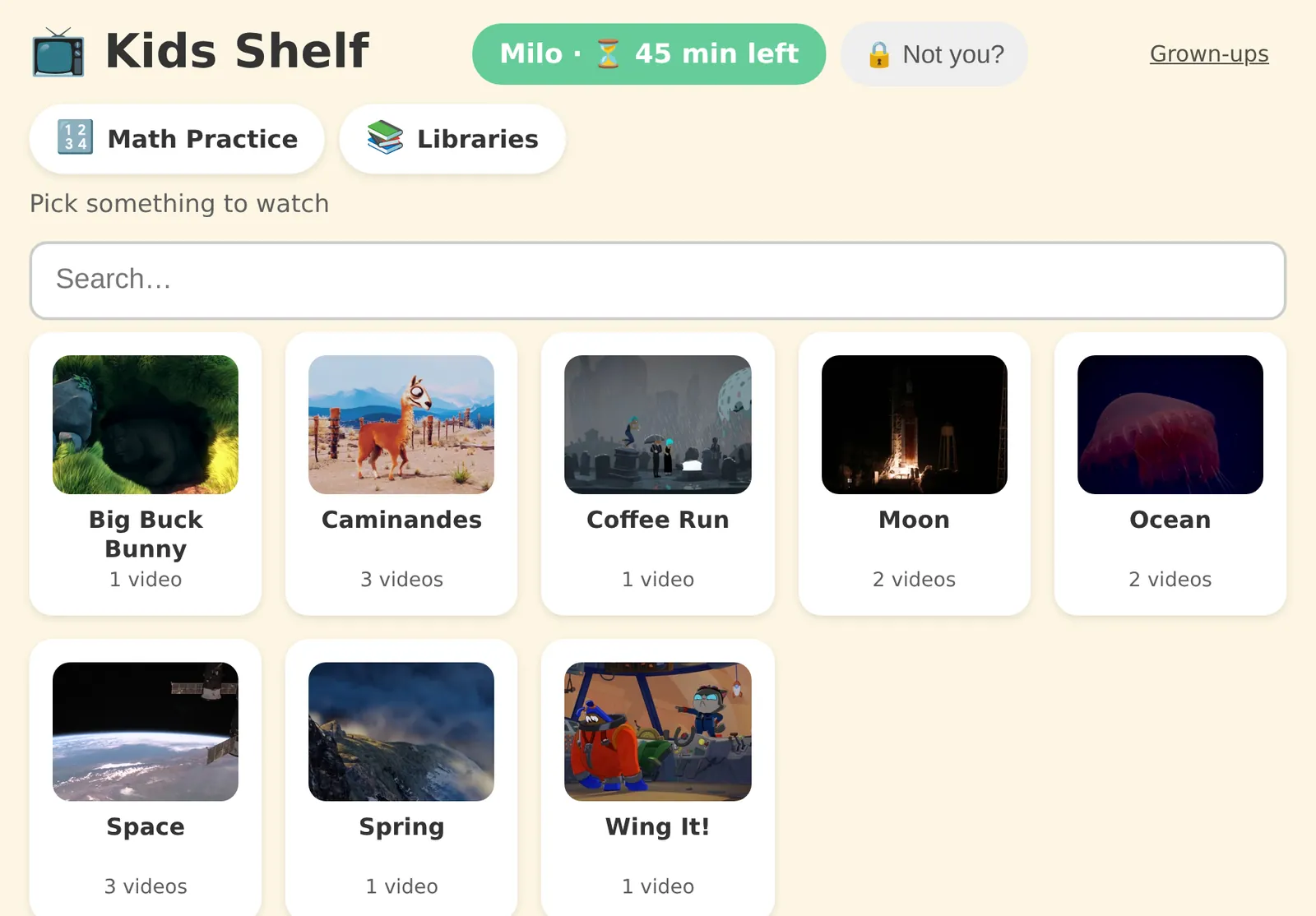
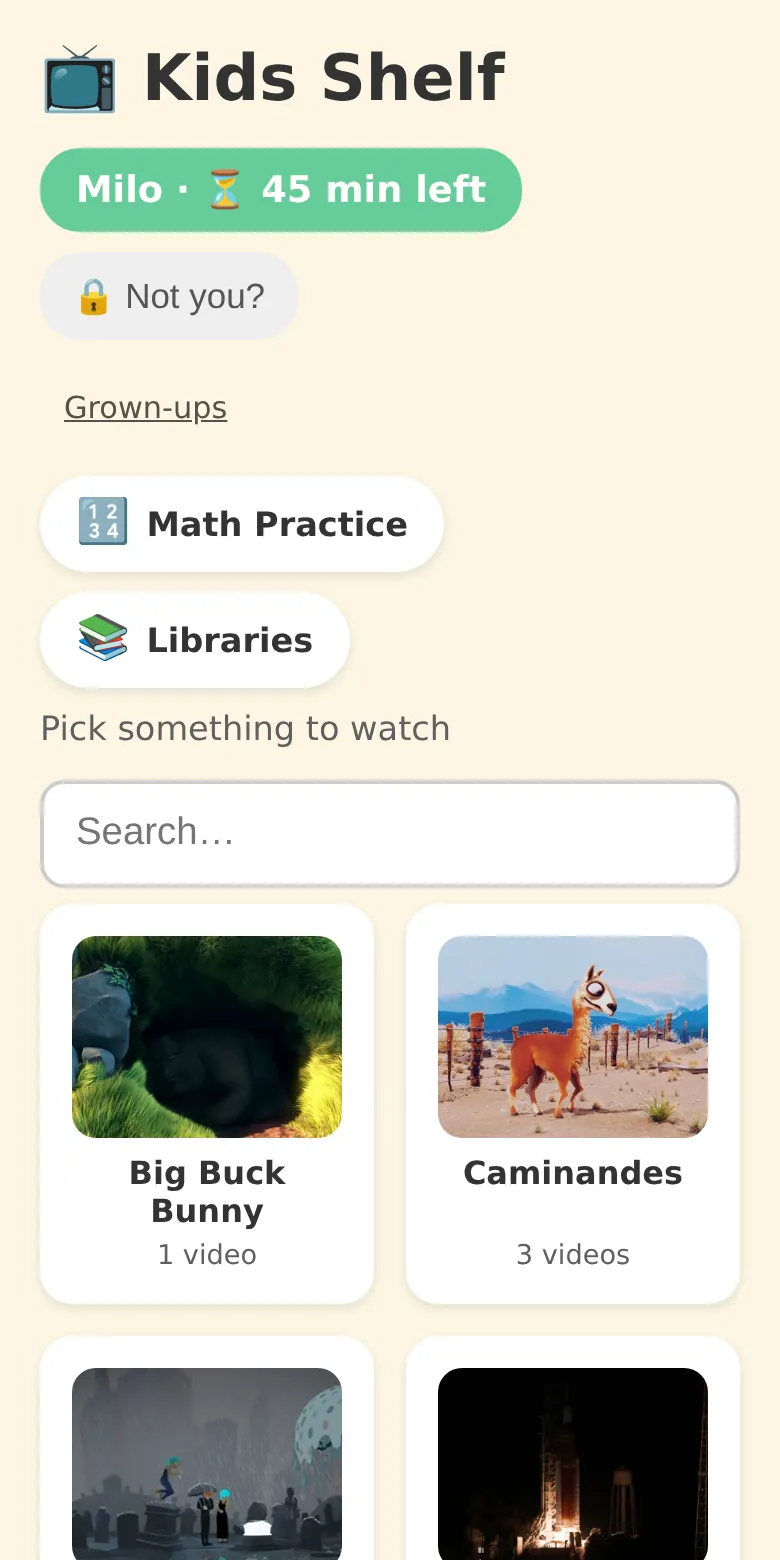
A kid's shelf in Kids Shelf: rows of shows with pictures, and the minutes left today at the top The same shelf on a phone
No algorithm, no autoplayNothing picks or plays the next video, so there's no loop to get hooked on.
No adsNo accounts, no tracking.
Every screenTV, laptop, phone: any web browser.
FreeOpen source, MIT license.
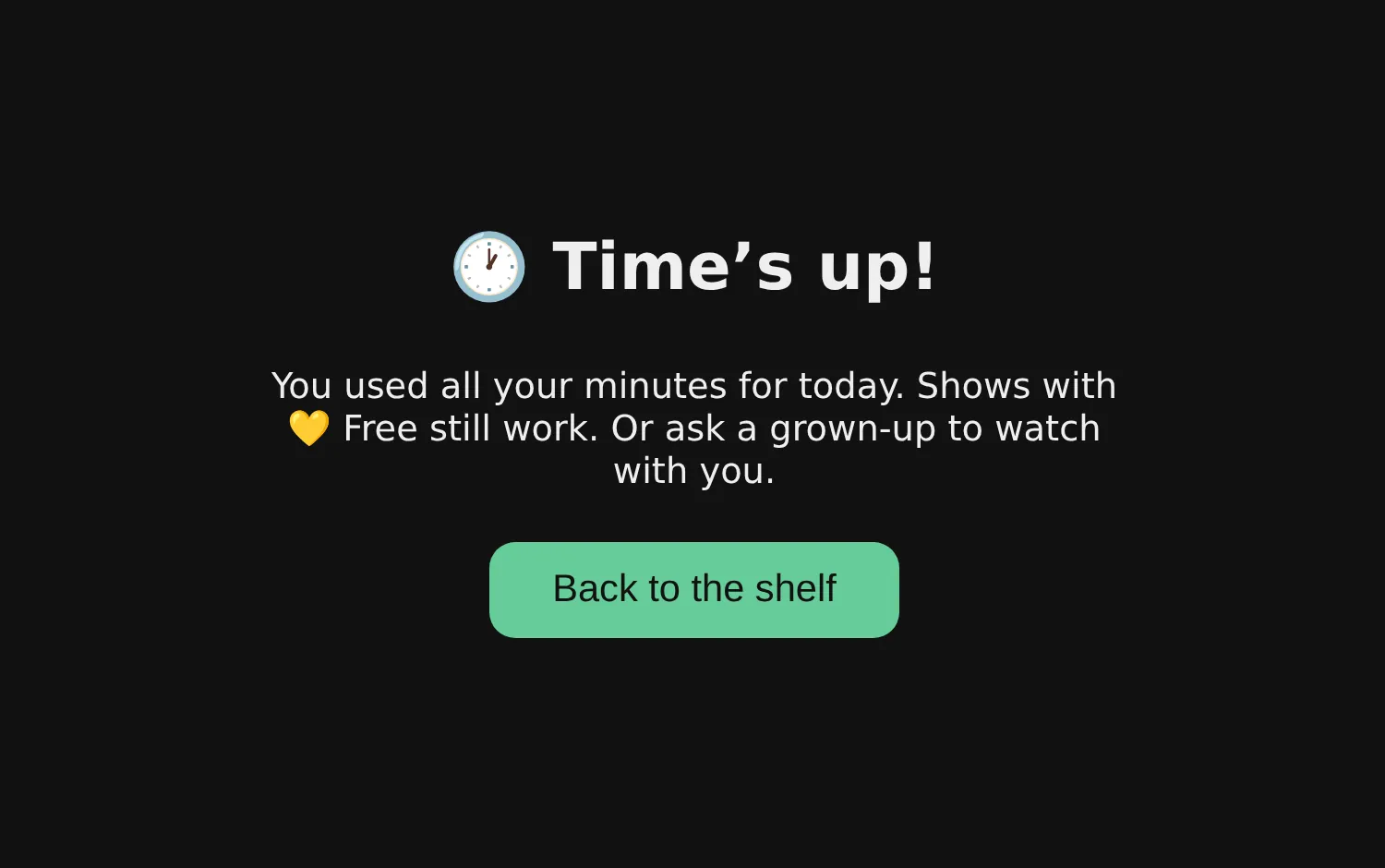
The player saying Time's up! You used all your minutes for today. Shows marked Free still work.

Automatic daily time limits

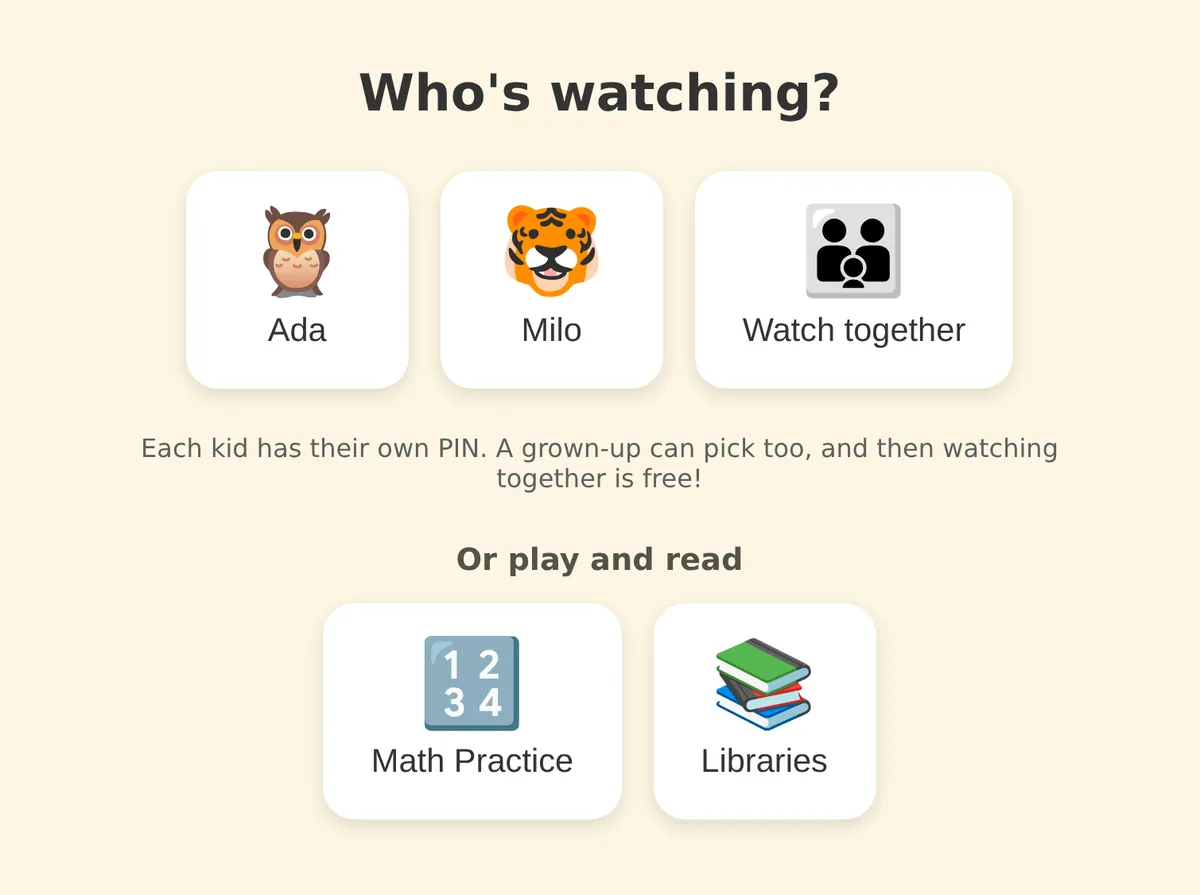
Each kid picks their name, types their own PIN and sees how many minutes are left today. The minutes count down while they watch. At zero the video stops and the shelf says Time's up!, so you are not the one who has to say it.

Minutes they don't use are saved for another day. You can give or take away minutes any time, and Watch together lets a grown-up switch the limit off while you watch with them.
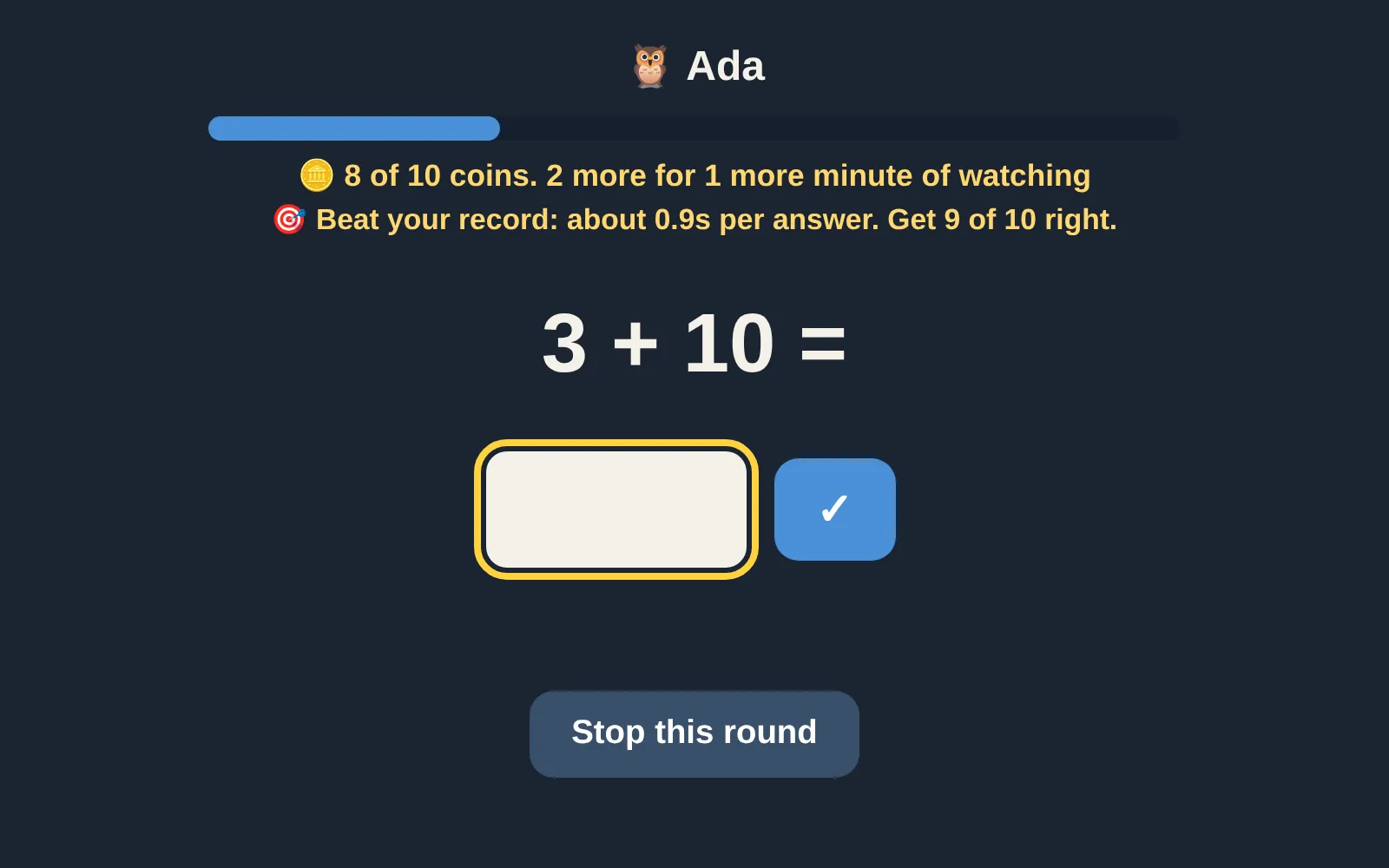
Math practice asking 1 + 14, with the coin count: 5 of 10 coins, 5 more for 1 more minute of watching

Math that earns video minutes

Short math and spelling rounds are one tap from the shelf. Right answers fill a coin jar, and every full jar adds a minute of video time. Each round leans toward the facts your kid hasn't mastered yet.

Kids can earn up to 3 minutes a day from math and 3 from spelling. To earn more, they come back tomorrow: a little practice every day sticks better than one long session.

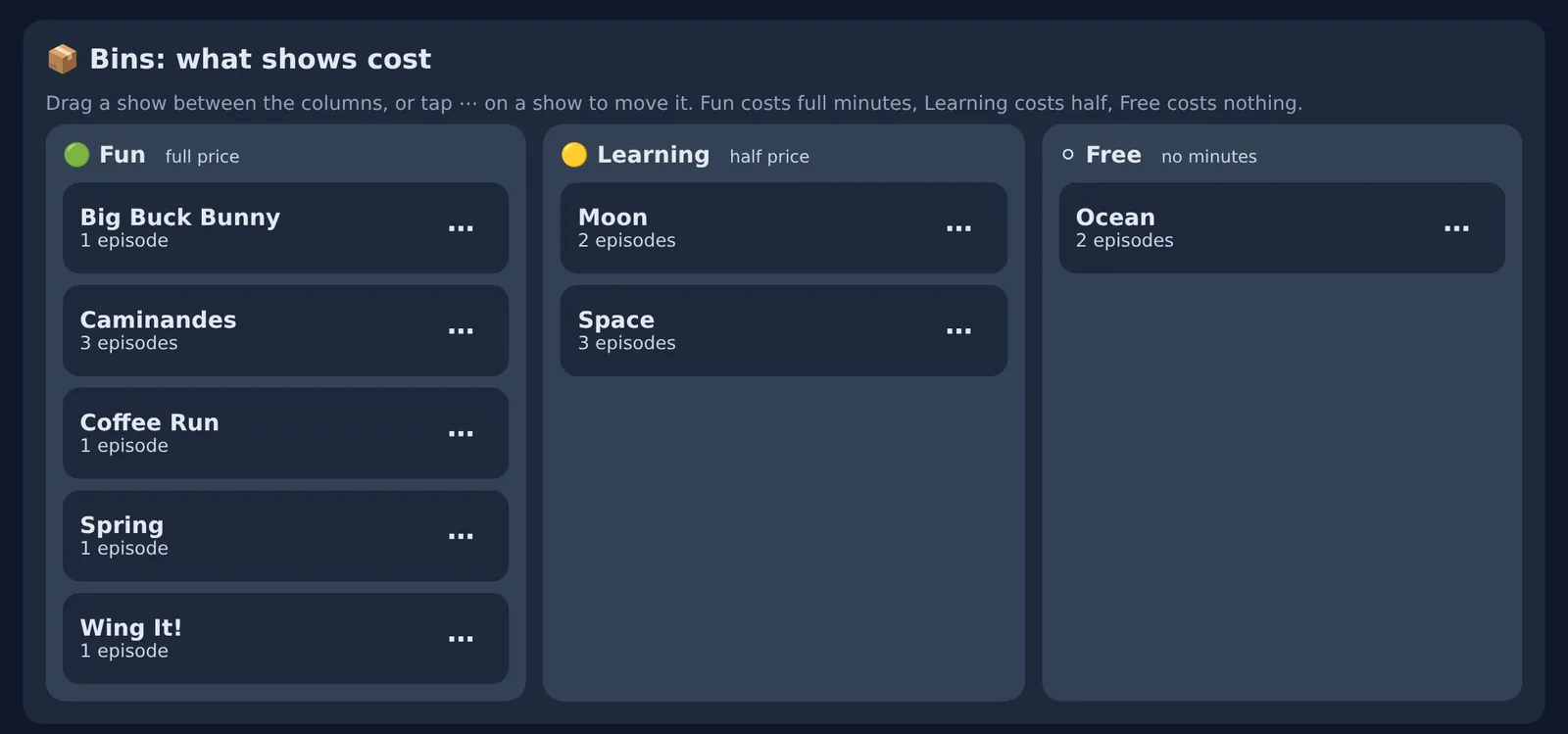
Shows sorted into three columns: Fun, Learning (half price) and Free

Learning shows cost half

Sort each show into Fun, Learning or Free. Fun costs full minutes, Learning costs half, and Free costs nothing. Twenty minutes of a science show uses ten of today's minutes, and Free shows still play after Time's up.

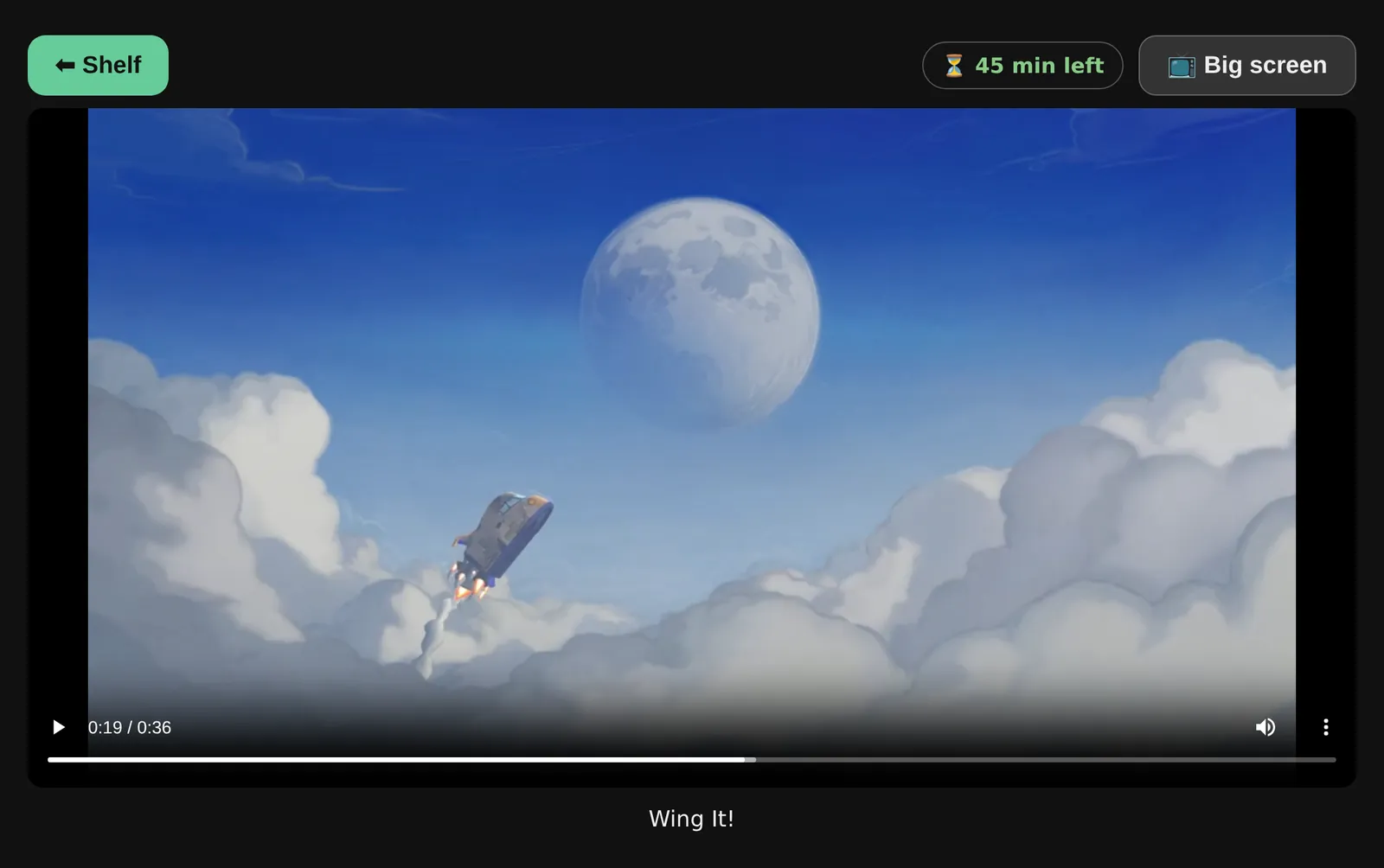
The video player paused on a short film, with the minutes left and a Big screen button above it

Only the videos you choose

There's no algorithmic feed and no autoplay, the two things that keep kids watching one more video. Your kids see only the shows you put on their shelf. When an episode ends, it stops; the next one plays only if they press Next.

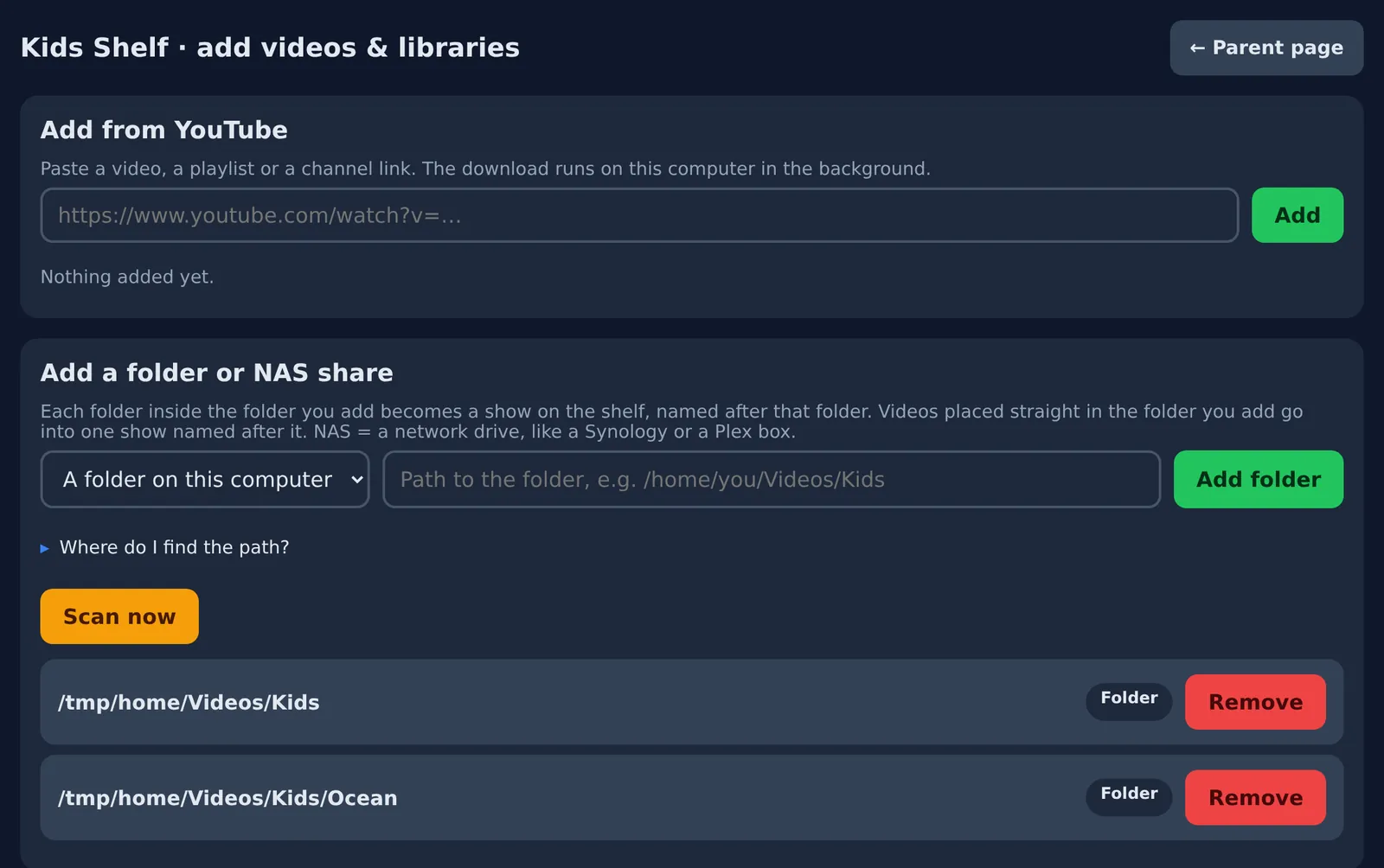
Paste a link to a YouTube video, a playlist or a whole channel, and Kids Shelf downloads it and keeps its own copy, so your kids never see YouTube itself: no suggestions, no comments, no ads. Videos you already have, on your computer or a home network drive, work too.

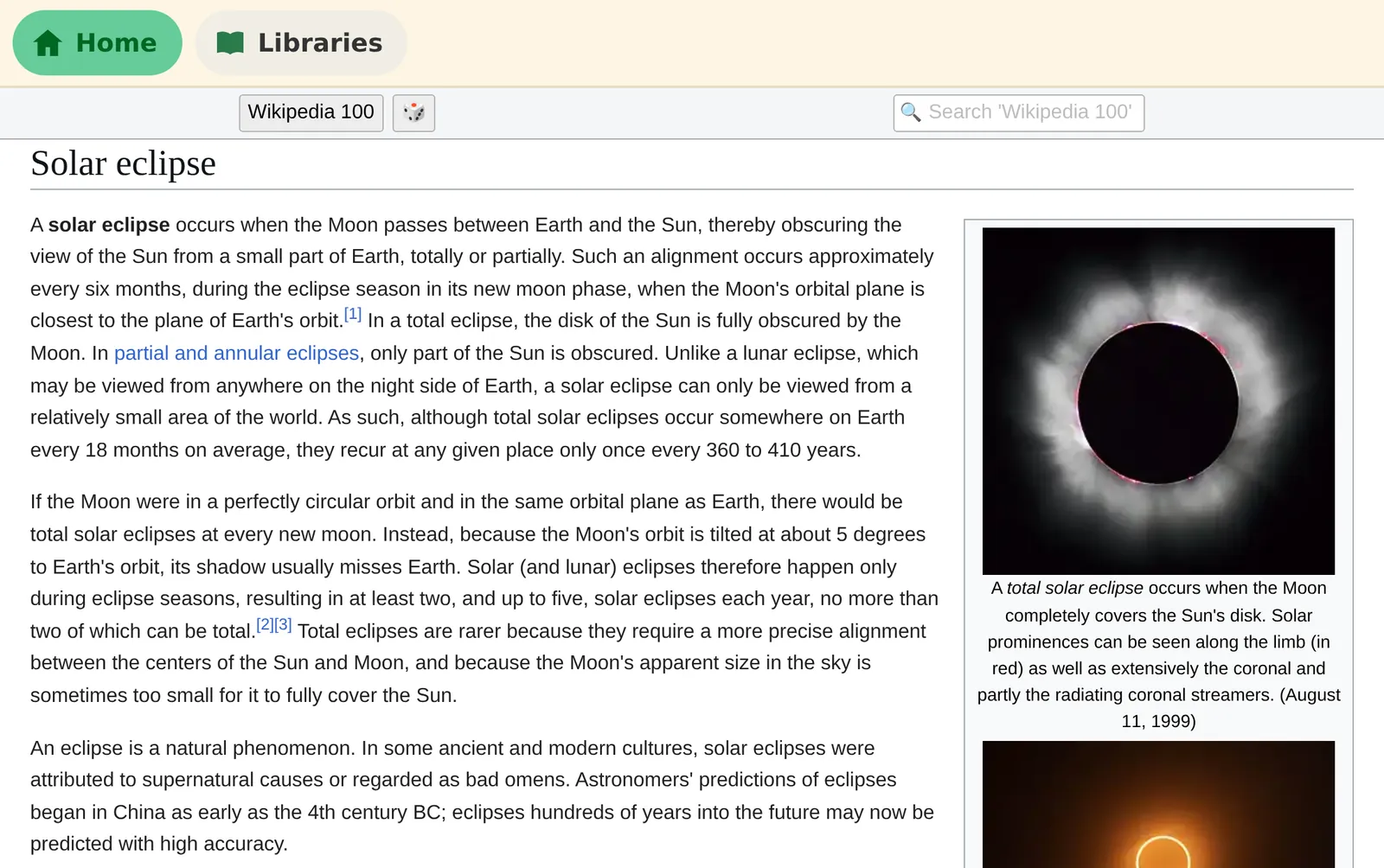
The Wikipedia article Solar eclipse, opened from the offline library in Kids Shelf

Wikipedia, without the web

Download offline libraries: Wikipedia, Vikidia (an encyclopedia written for 8 to 13 year olds), PhET's interactive science experiments and more. They live on your computer and work with the internet unplugged. Links that would leave the library don't open.

Sizes range from 74 MB (Vikidia) to about 120 GB (all of English Wikipedia). Library files you already have from the Kiwix app work where they are.

Who's watching? Each kid has a big button with their name

Every screen in the house

One computer runs Kids Shelf. Anything with a web browser on your home Wi-Fi opens it: the TV, a Raspberry Pi, an old laptop, a phone. Scan the QR code on the parent page, or type kids-shelf.local:8070. There is nothing to install on the screens and nothing to buy.

The page for adding videos from YouTube, from folders, and offline libraries

Yours, on your computer

No accounts, no cloud, no ads and no tracking. Your videos, libraries and settings stay on your own computer, and nothing the kids watch, read or type leaves it. Kids Shelf goes online only to download what you add and to update itself and its video tools.

It updates itself, checks that each update really came from me before installing it, goes back to the previous version by itself if a new one doesn't start, and clears away old versions so it doesn't fill up your disk.

Download

Free. Pick the file for the computer that will run Kids Shelf.

The computer that runs Kids Shelf has to be switched on and awake while the kids watch, and it keeps the videos and libraries, so it needs the disk space for them. Every release, with its source code, is on GitHub.

Install

Kids Shelf is free and isn't sold through Microsoft or Apple, so both of them warn you before it first runs. The warnings sound scary. They are normal for this app, and the steps below show what to click.

Windows
  1. In your Downloads folder, right-click the zip file and choose Extract All, then Extract. Open the new folder and double-click kids-shelf.
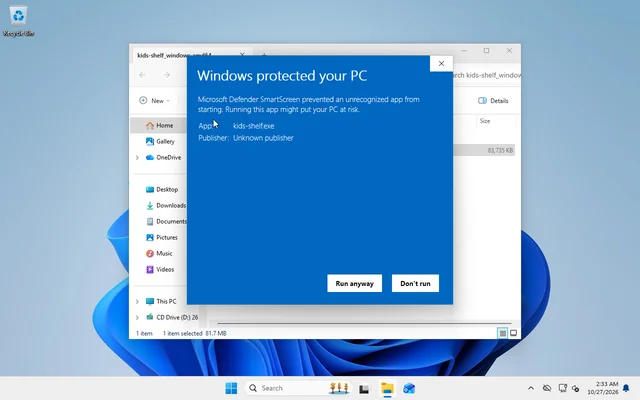
  2. If Windows says Windows protected your PC, click More info, then Run anyway. It names the publisher as Unknown publisher; that is expected. Windows protected your PC, with the Run anyway button
  3. Windows Firewall asks whether Kids Shelf may use public and private networks. Click Allow: it lets the other screens on your Wi-Fi reach Kids Shelf.
  4. Kids Shelf installs itself and opens in your browser. From now on, start it from the kids-shelf icon on the desktop or in the Start menu.

Some Windows 11 computers have Smart App Control switched on. Windows then checks Kids Shelf before it lets it run, which can take a minute the first time and, now and then, up to an hour. The full guide explains what you'll see.

Mac

macOS shows three warnings that use the words "malware" and "harm your Mac". They are normal for this app. Never click Move to Trash.

  1. Download the zip in Safari and click Allow if Safari asks about downloads from github.com. Safari unzips it, and kids-shelf appears in your Downloads folder.
  2. Double-click kids-shelf. macOS says "kids-shelf" Not Opened. Click Done.
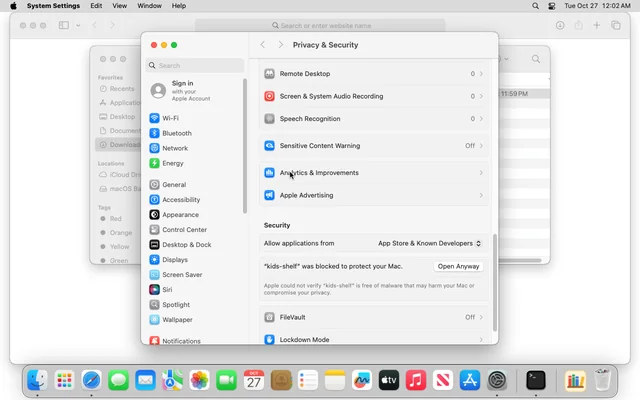
  3. Open the Apple menu, System Settings, Privacy & Security. Scroll down to Security and click Open Anyway next to "kids-shelf" was blocked. Privacy and Security settings with the Open Anyway button
  4. macOS asks once more. Click Open Anyway and type your Mac password.
  5. Kids Shelf installs itself into Applications, puts its icon (a little bookshelf) in the Dock and opens in Safari. When macOS asks whether kids-shelf may find devices on local networks, click Allow.
Linux and Raspberry Pi
  1. Unzip the file, open a terminal in that folder and run ./kids-shelf.
  2. It installs itself into ~/.local/share/kids-shelf/app, adds itself to your applications menu and opens in your browser.

If other screens can't connect, open TCP ports 8070 and 8071 (and UDP 5353 for the name kids-shelf.local) in your firewall. The full guide has the commands for Ubuntu and Fedora.

Then, on the parent page

  1. Make a parent PIN. The kids can see the Grown-ups link, so the parent page always asks for it.
  2. Add your kids, each with their own PIN and minutes a day.
  3. Add videos and libraries: YouTube links, folders of your own videos, offline libraries.
  4. Connect the screens. Scan the QR code with a phone, or type the address the page shows into the TV's browser.

The guide for parents covers every step in more detail.

Questions

What does it cost?

Nothing. Kids Shelf is free and open source under the MIT license. There is no subscription, no paid version and no ads.

Why is it free?

I made Kids Shelf for my own kids. Friends wanted to try it with theirs, and sharing it costs me nothing, so here it is.

Why do Windows and macOS warn about it?

Microsoft and Apple warn about any app whose maker hasn't paid them to vouch for it. Kids Shelf doesn't pay, so you see the warnings once, when you first open it. Updates install without them, and each one is signed so Kids Shelf can check it came from me.

Does it need the internet?

Only to download the videos and libraries you add, and for updates. Watching, reading and practice all work with the internet unplugged.

What kind of computer does it need?

A Windows PC, a Mac or a Linux PC (a Raspberry Pi with 64-bit Raspberry Pi OS works too) that stays on while the kids watch, with room for your videos and libraries. A spare or older computer is fine. The screens only need a web browser.

Can my kids get around it?

Kids Shelf decides what its shelf shows and for how long. It doesn't lock down the phone, tablet or TV the kids use, so a kid who can open a web browser can still go elsewhere. It works best on screens set to open only Kids Shelf, like a TV browser or a Raspberry Pi.

Can I see the code?

Yes, it's all on GitHub, along with every release. Bug reports and ideas are welcome there.